Inserting Citations and Notes
In the “题录笔记” section, you can choose to insert references and notes.
Use the [插入引用] button under the reference to directly insert a single citation.
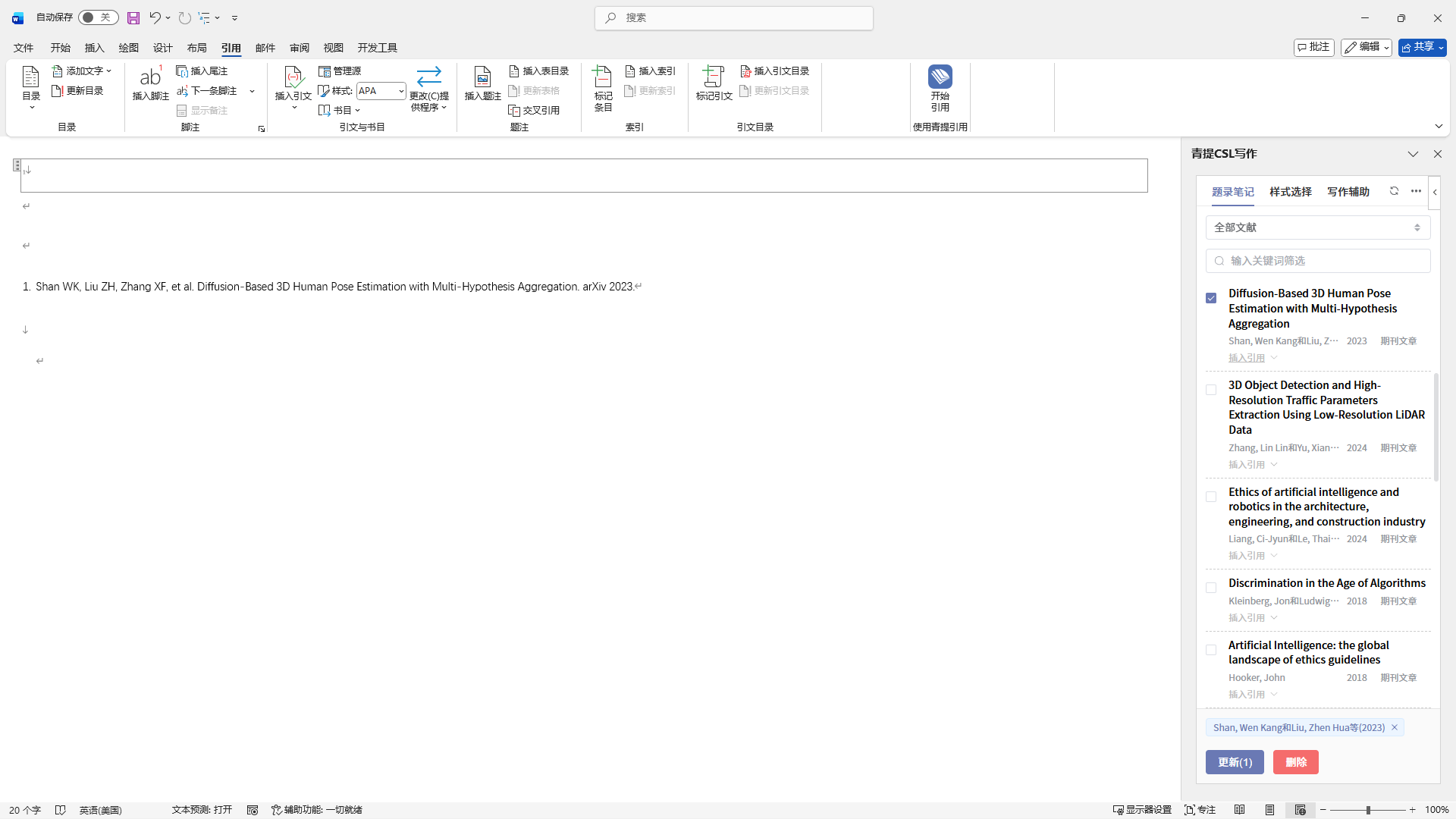
You can also select multiple references you need to cite by checking the boxes, then click the [插入] button to insert multiple citations.
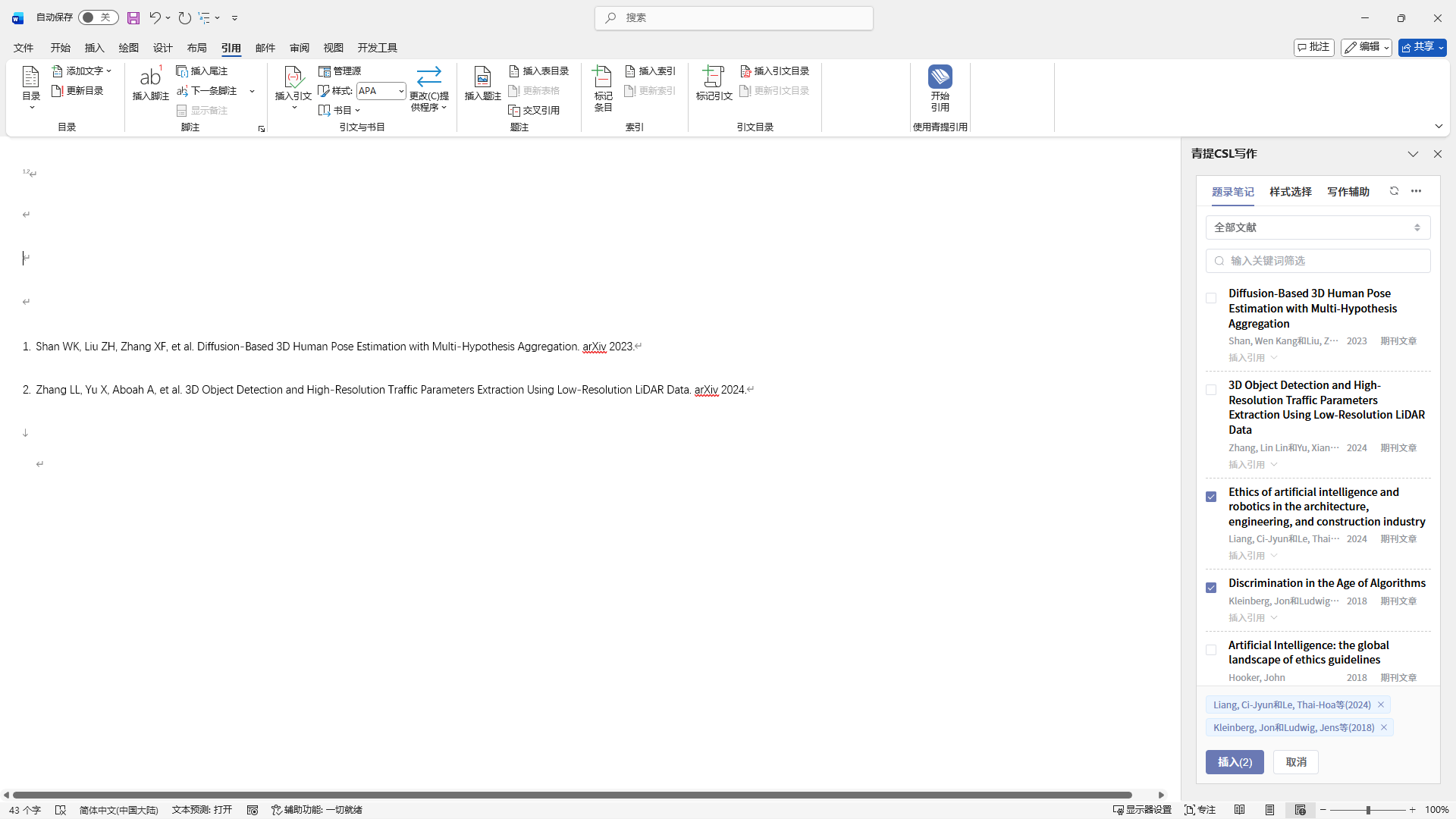
Place the cursor on the position of an already inserted citation. You can then modify or delete the current citation by changing the checked references.
For reference entries for which notes have been edited in the software, an [插入笔记] button will appear below. Click it to enter the note list, select the desired note, and click [插入] to add it to the document.
Currently, only the insertion of Markdown notes is supported. Basic hierarchical formatting is preserved.
Style Selection
In the “样式选择” section, you can switch and select styles, preview the currently selected style, and adjust the corresponding settings.
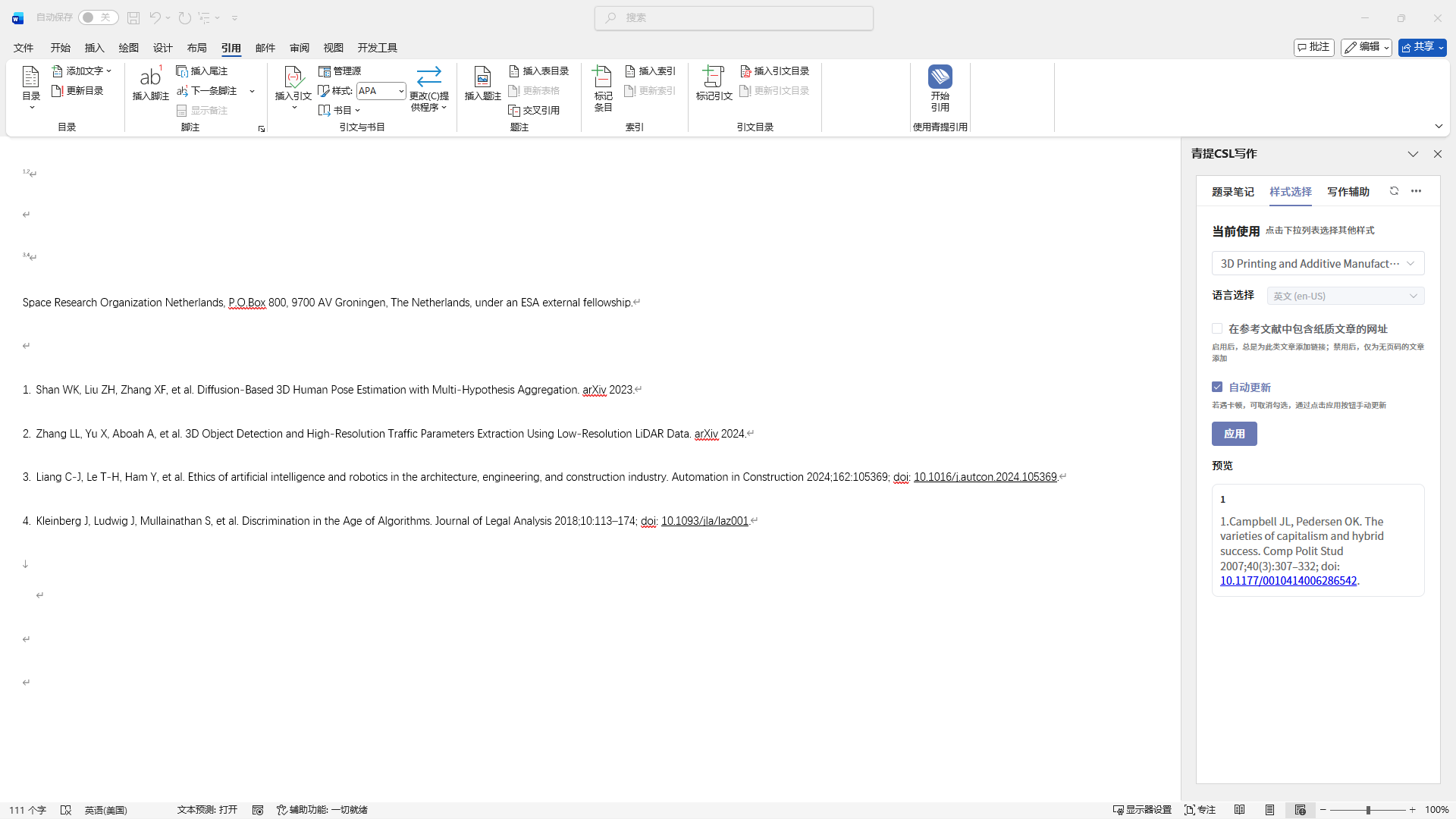
The style dropdown list defaults to showing recently used styles. You can switch between them directly.
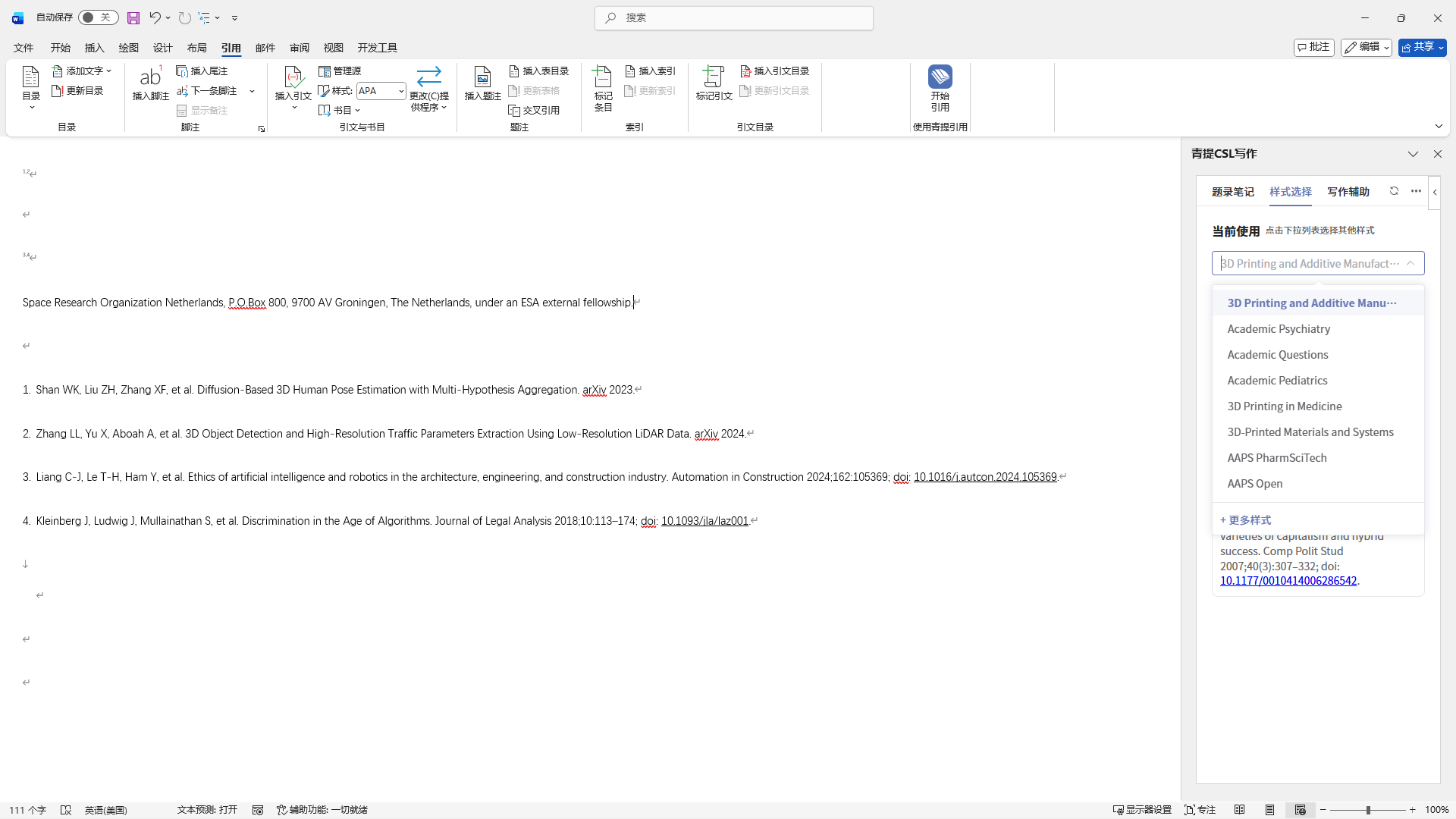
Clicking [更多样式] will take you to the style library to browse, search, and add additional styles.
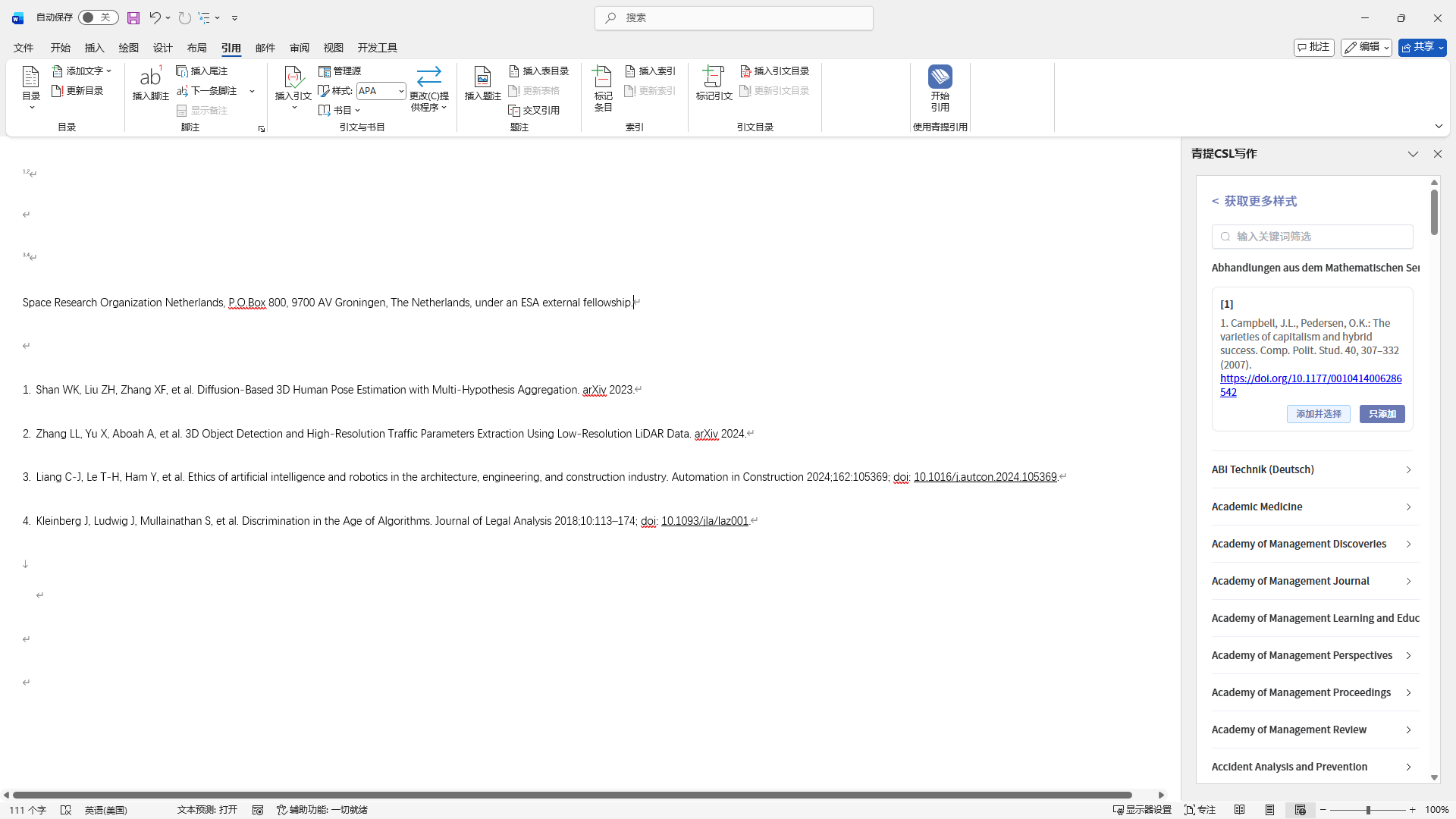
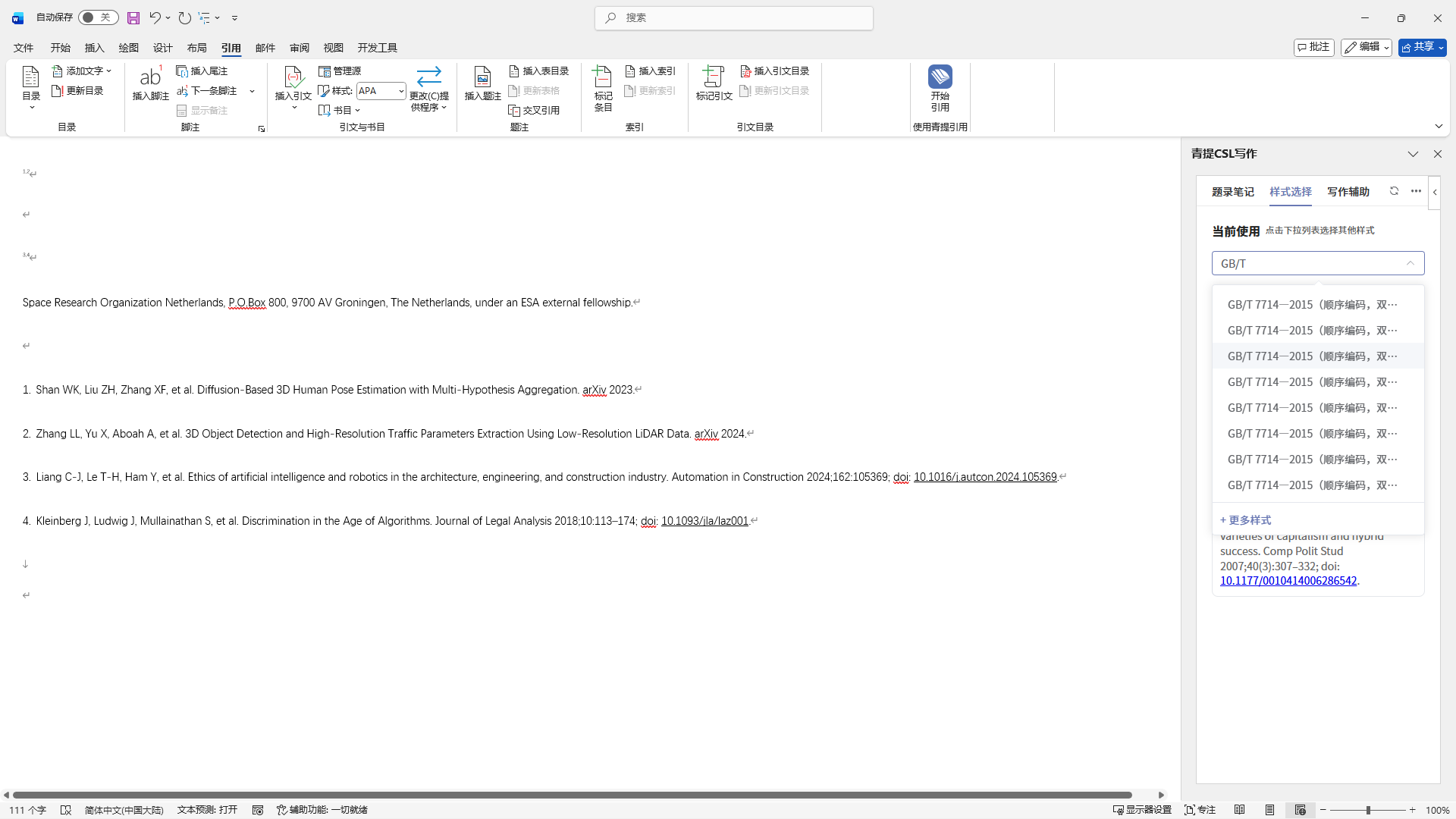
Entering keywords in the style search box allows for quick filtering of added styles.
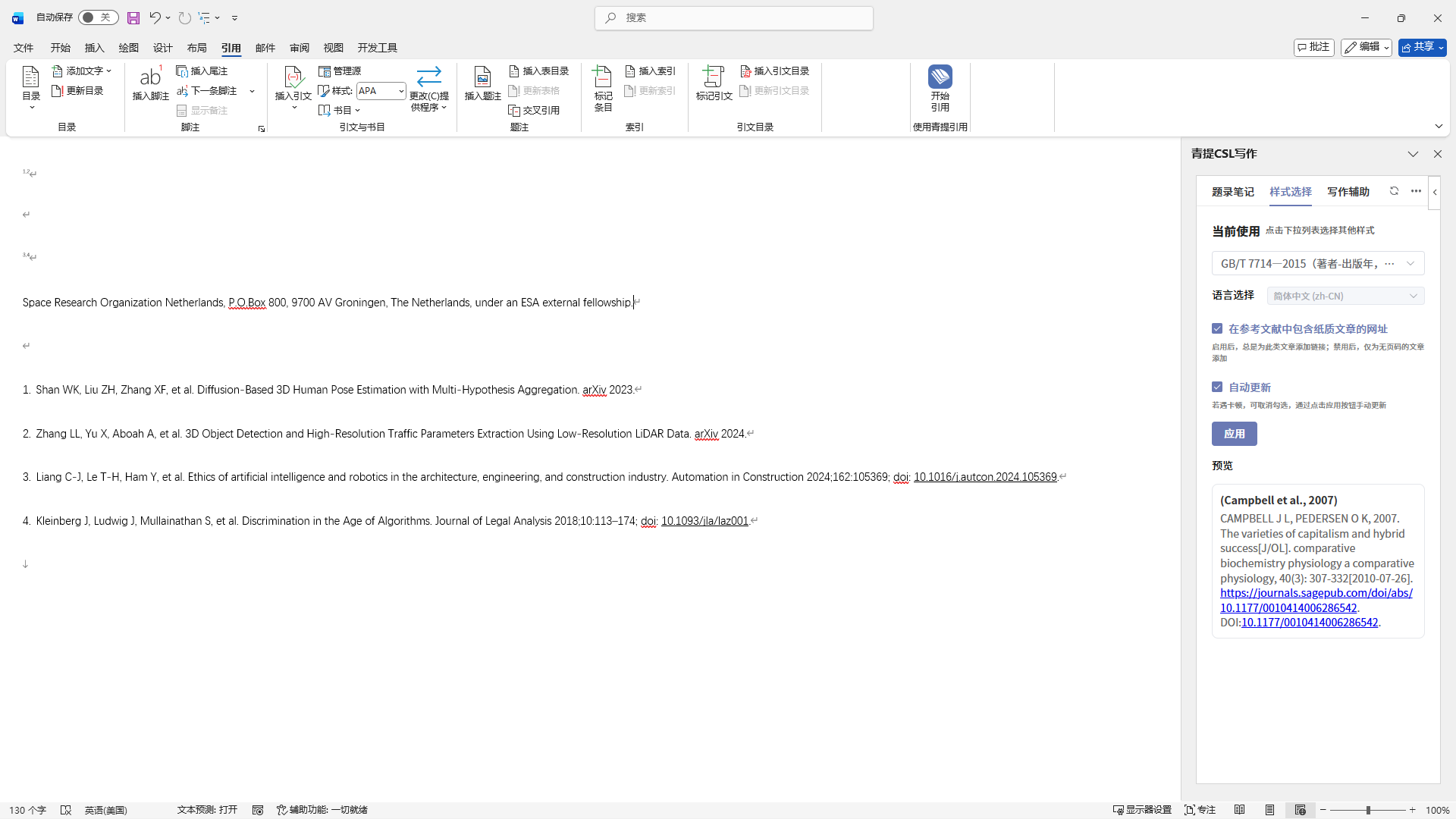
You can fine-tune the style display effects through the settings and confirm the citation results in the preview.
- For articles containing links, you can choose whether to always add the URL by checking the corresponding box.
- For footnote styles, you can choose to generate footnotes at the bottom of the page or endnotes at the end of the document. Additionally, it supports displaying the bibliography simultaneously by checking the corresponding box. In the preview, as shown, the bolded part represents the style of the footnote or endnote, while the numbered content shows the style of the bibliography.

- After confirming, you can click [应用] to implement the newly selected style in the document.
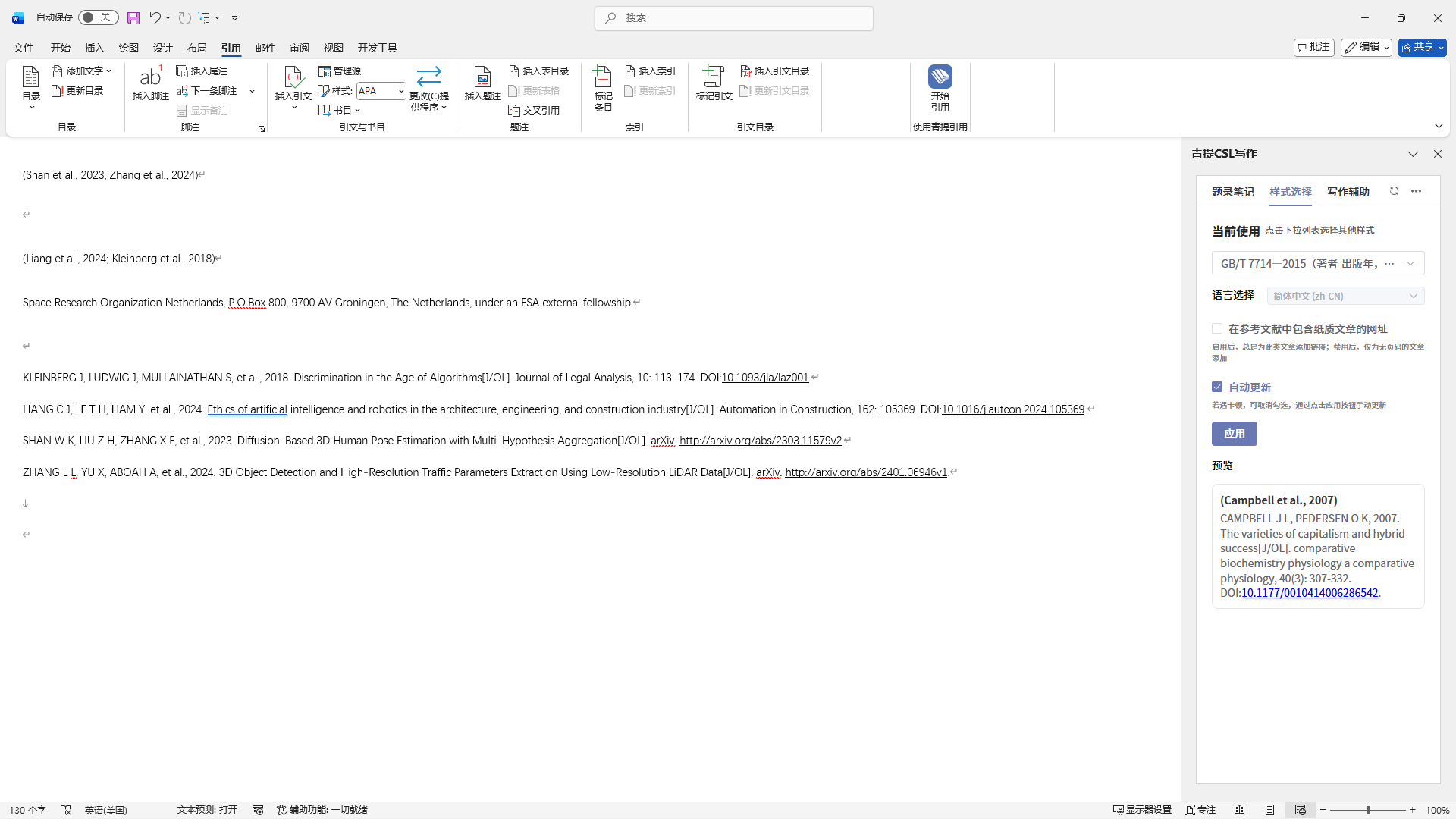
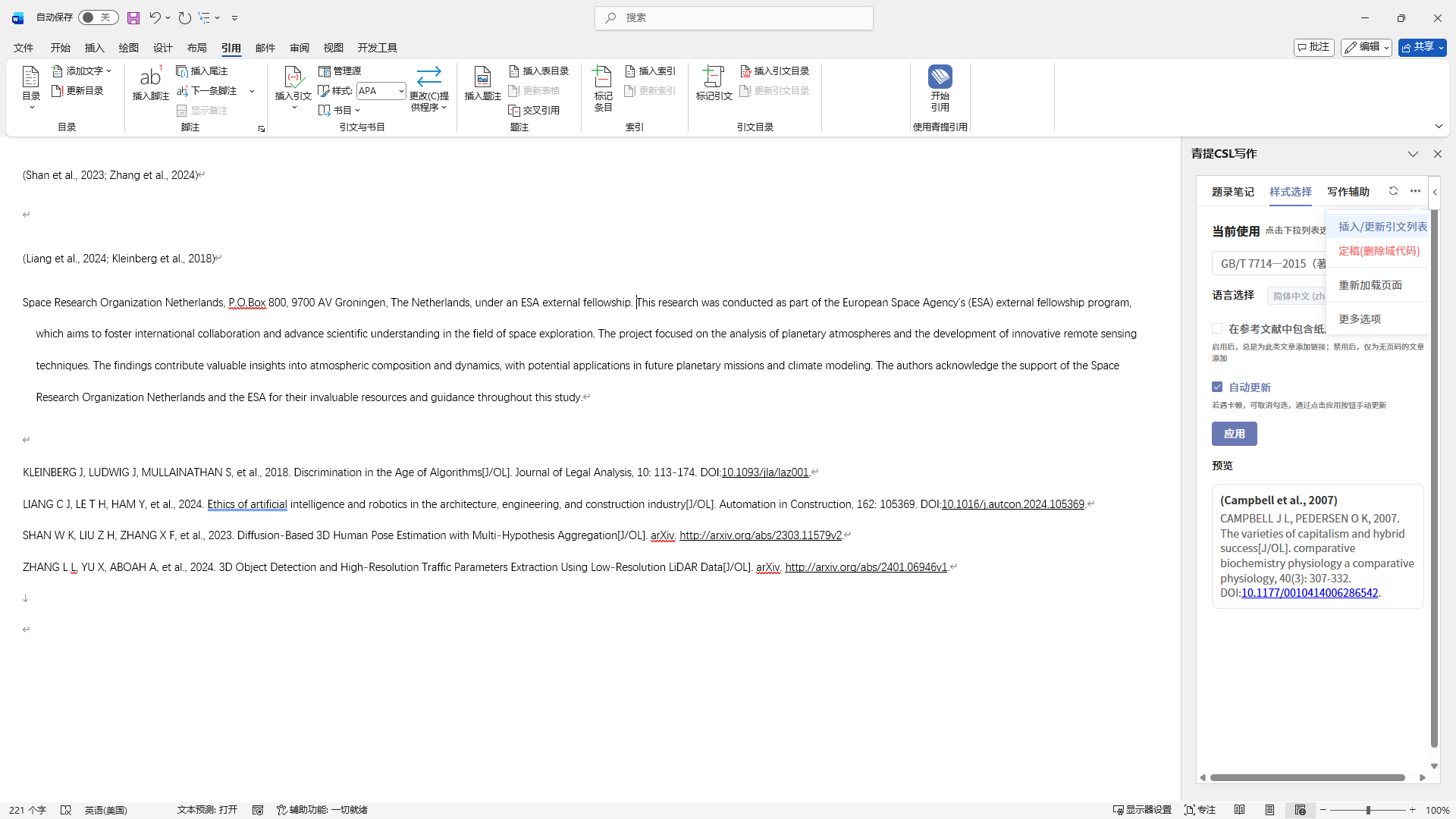
When [自动更新] is checked, newly added citations will immediately trigger an update of the bibliography. If the number of references is large, this may cause lag. In such cases, you can uncheck this option and manually update the bibliography by selecting [插入/更新引文列表] from the menu.
Writing Assistant
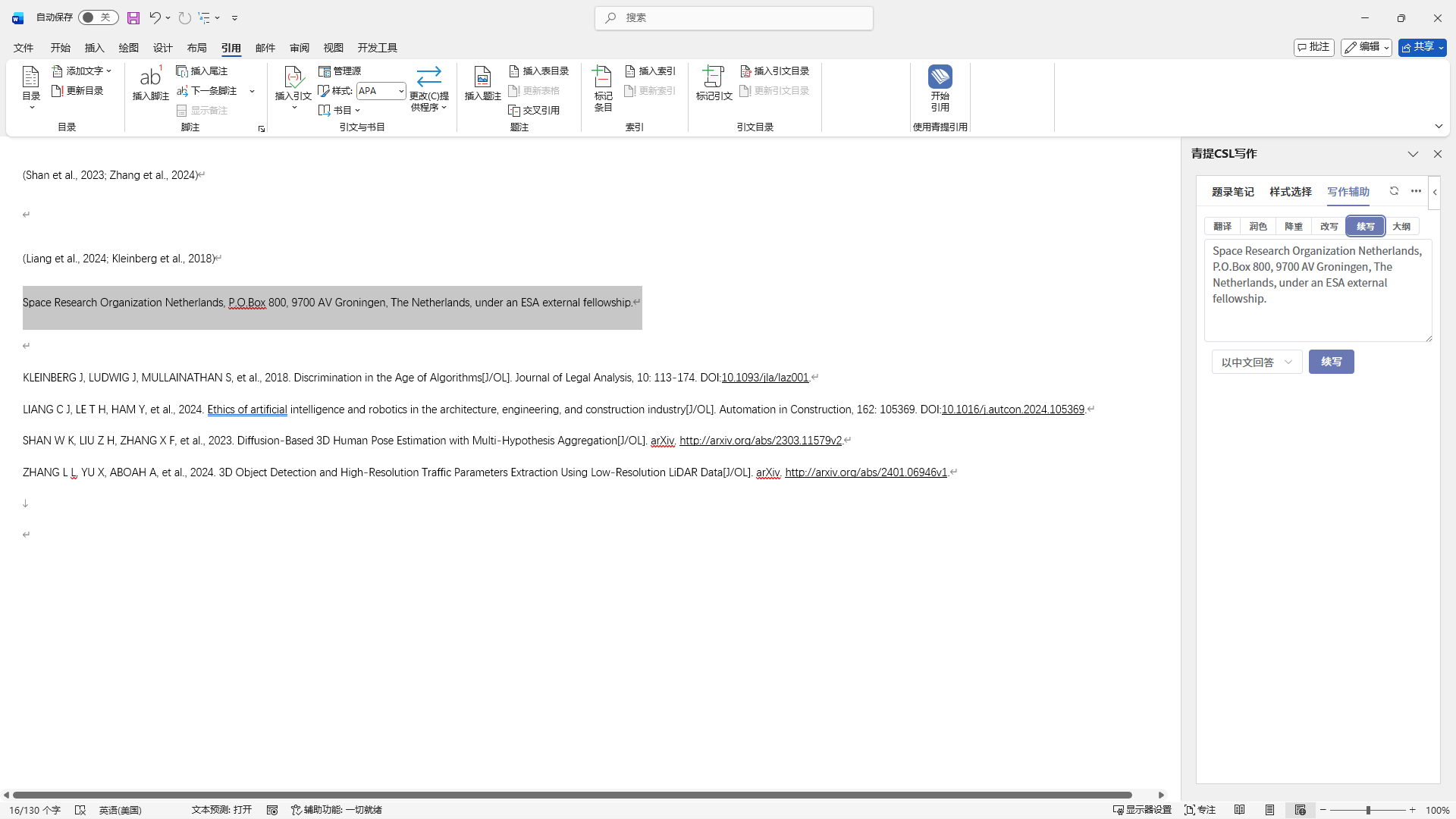
In the “写作辅助” section, you can choose to use the corresponding auxiliary functions.
When text is selected, it will automatically populate the text input box.
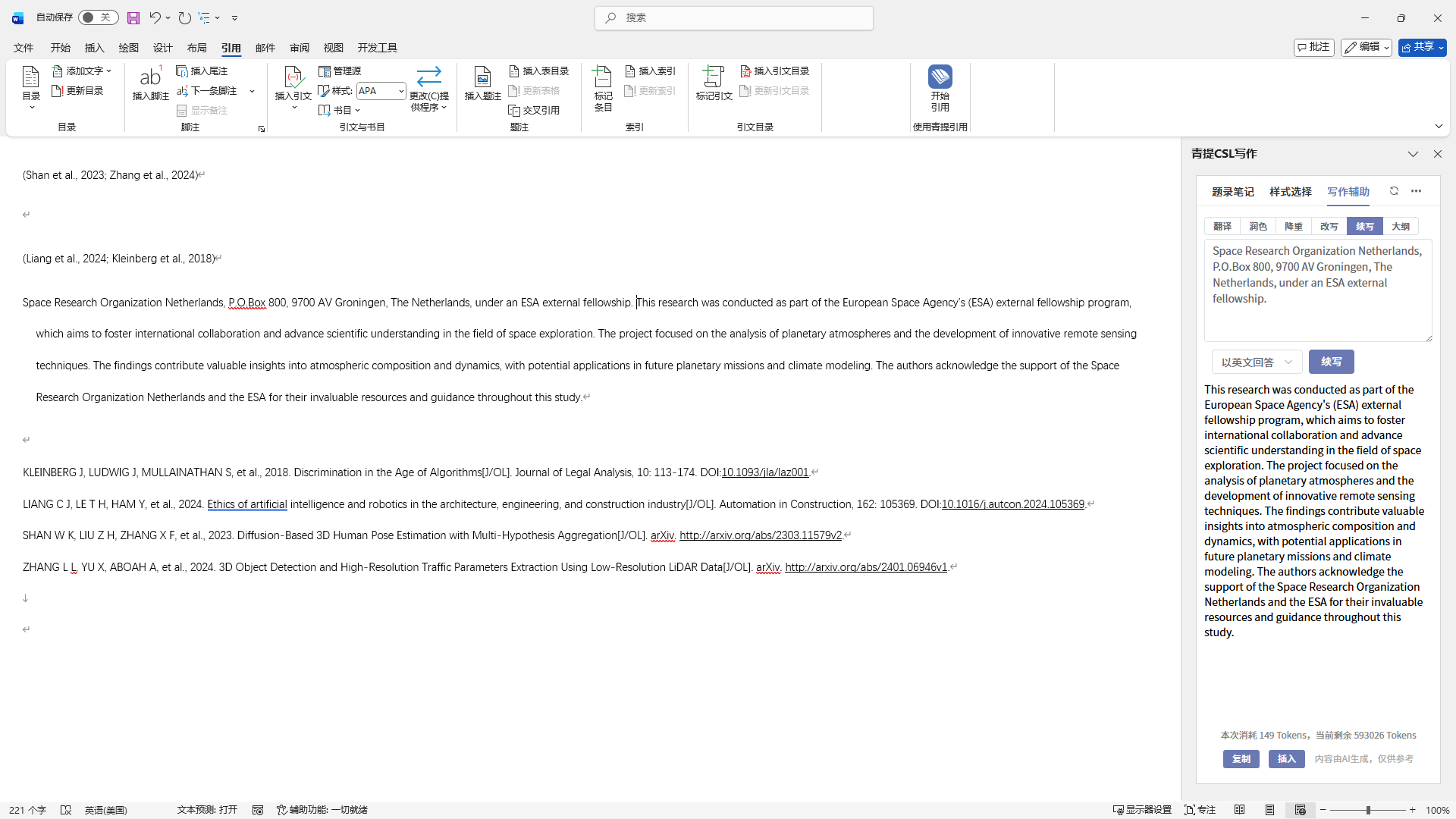
After clicking the function button and the result is generated, clicking [插入] will add the generated content after the original text. The original text will not be overwritten by the selection.
Menu Options
Insert/Update Bibliography
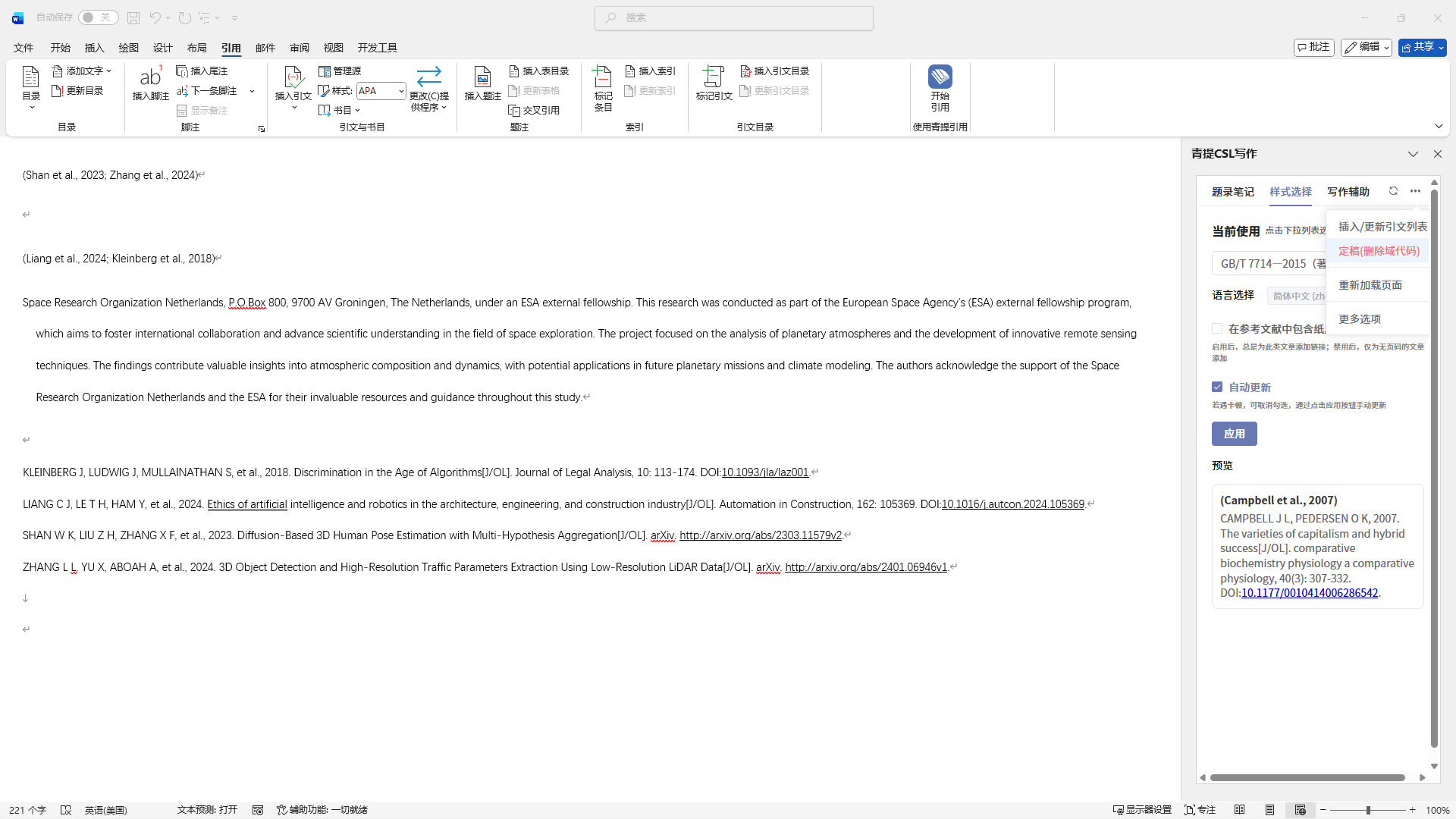
When the Auto Update option in the Style Selection is unchecked, you can use this [插入/更新引文列表] to manually insert or update the bibliography. The change takes effect upon clicking.
Finalize and Proofread
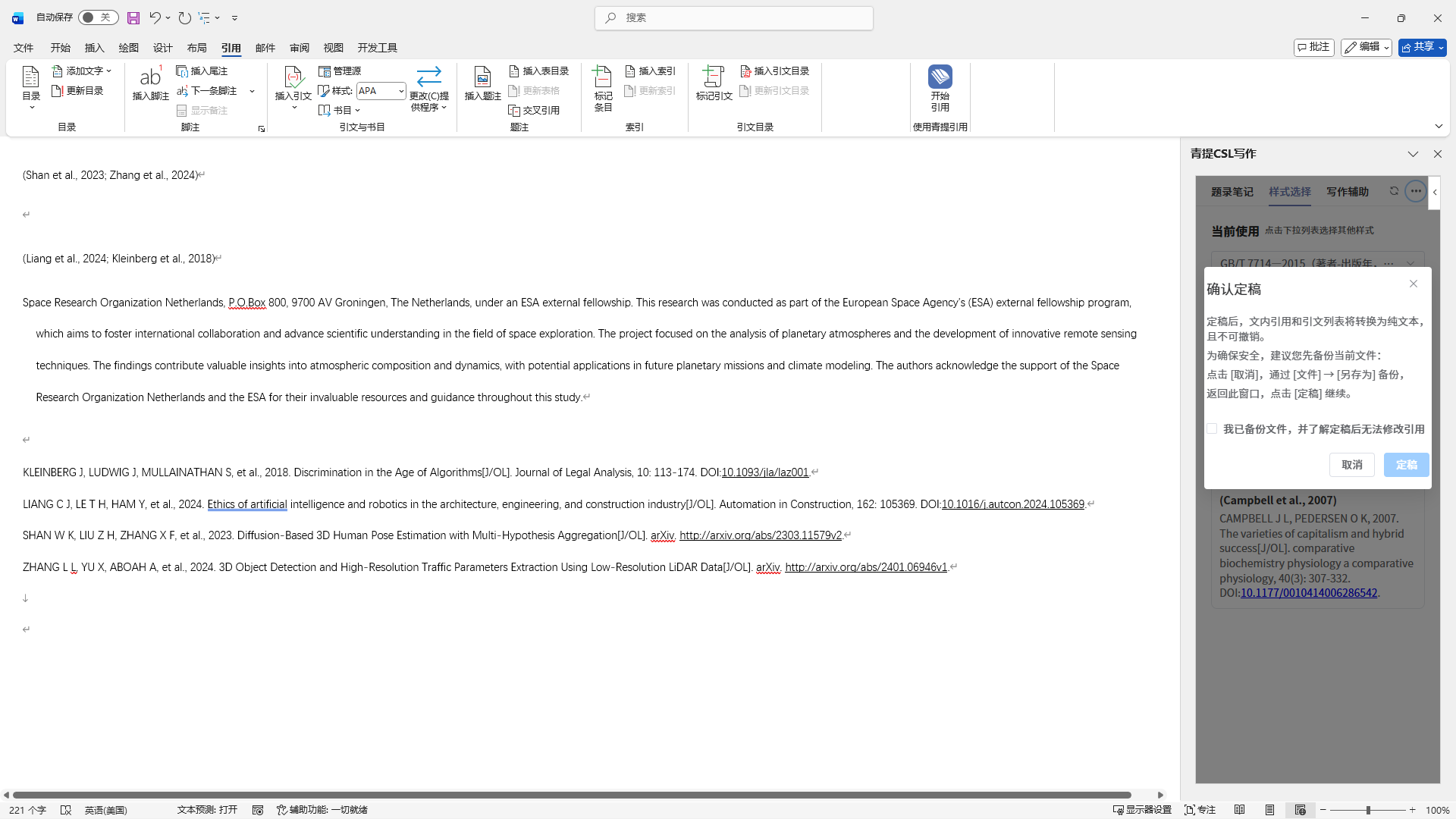
After completing all citations, you can use this [校对定稿] option to convert the document into plain text. This makes it easier to adjust formatting styles.
Reload Page
When it is necessary to update the database information, you can reload the page using this [重新加载页面] option or by right-clicking and selecting refresh.
More Options
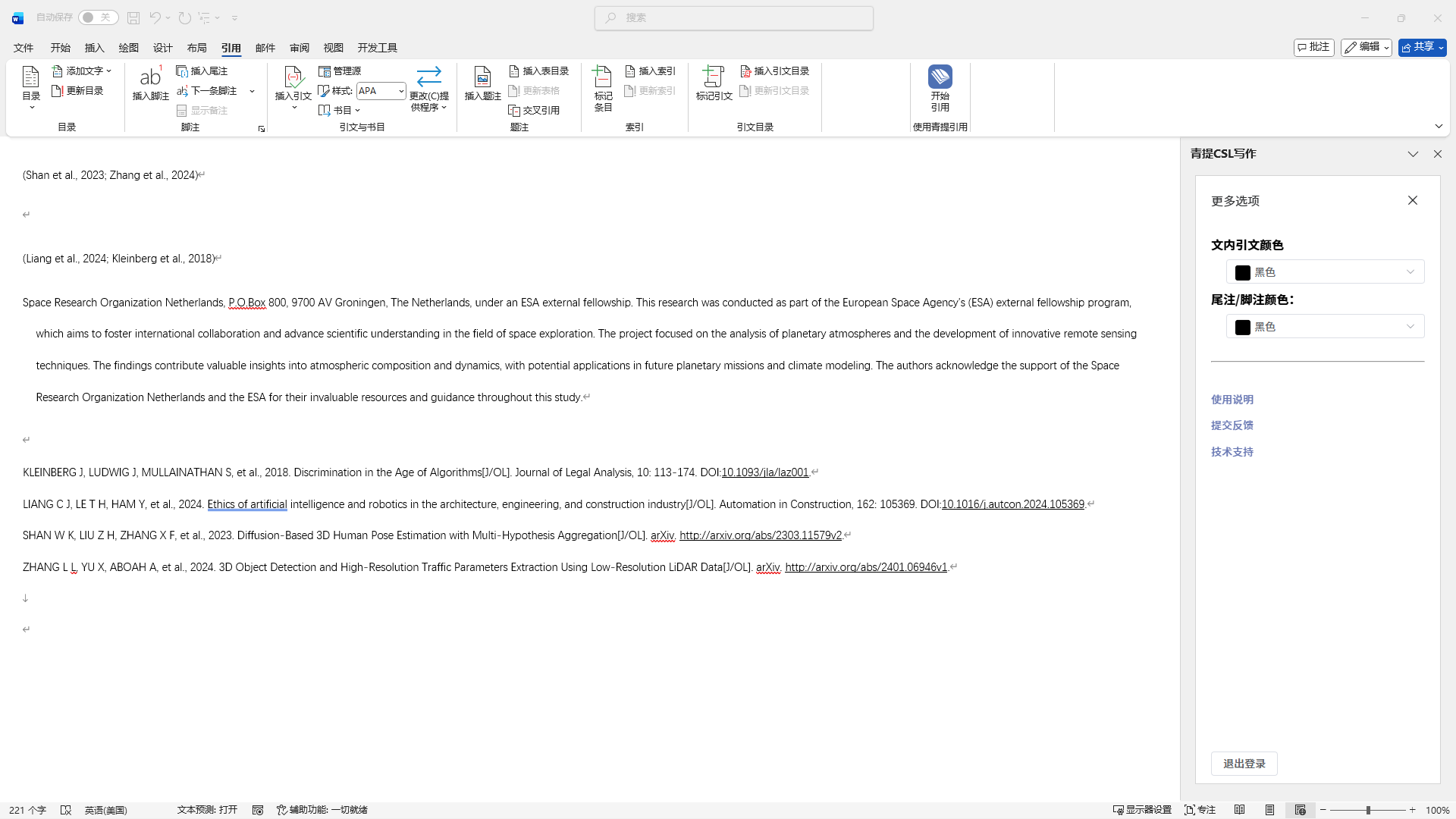
In the [更多选项] menu, you can adjust the text color of citations, go to obtain technical support, and switch accounts by logging out.